Accounting basics
The accounting side of your ERP, explained for someone who runs a business rather than someone who trained as an accountant.
You are not starting from zero
When your ERP was created, the accounting foundation was set up for you. Before you touch anything, you already have:
- A Company record carrying your company name, currency and country. Every document you create belongs to it.
- A complete Chart of Accounts — the standard list of accounts a business needs, generated from your country's template. More on this below.
- A Fiscal Year — the twelve months your profit is measured over. It does not have to run January to December; it is whatever period your tax authority uses. Reports use these dates to know which period they cover.
In other words, you can issue an invoice on your first day and the figures will land in the right places. What follows is how to adjust that foundation to your own business, and how to read what comes out of it.
The chart of accounts
An account is a labelled box that one kind of money goes into: rent, sales, the bank, what customers owe you. The chart of accounts is the full list of those boxes. Every invoice, payment and expense ends up in one of them, and every report is those boxes added up in a particular way.
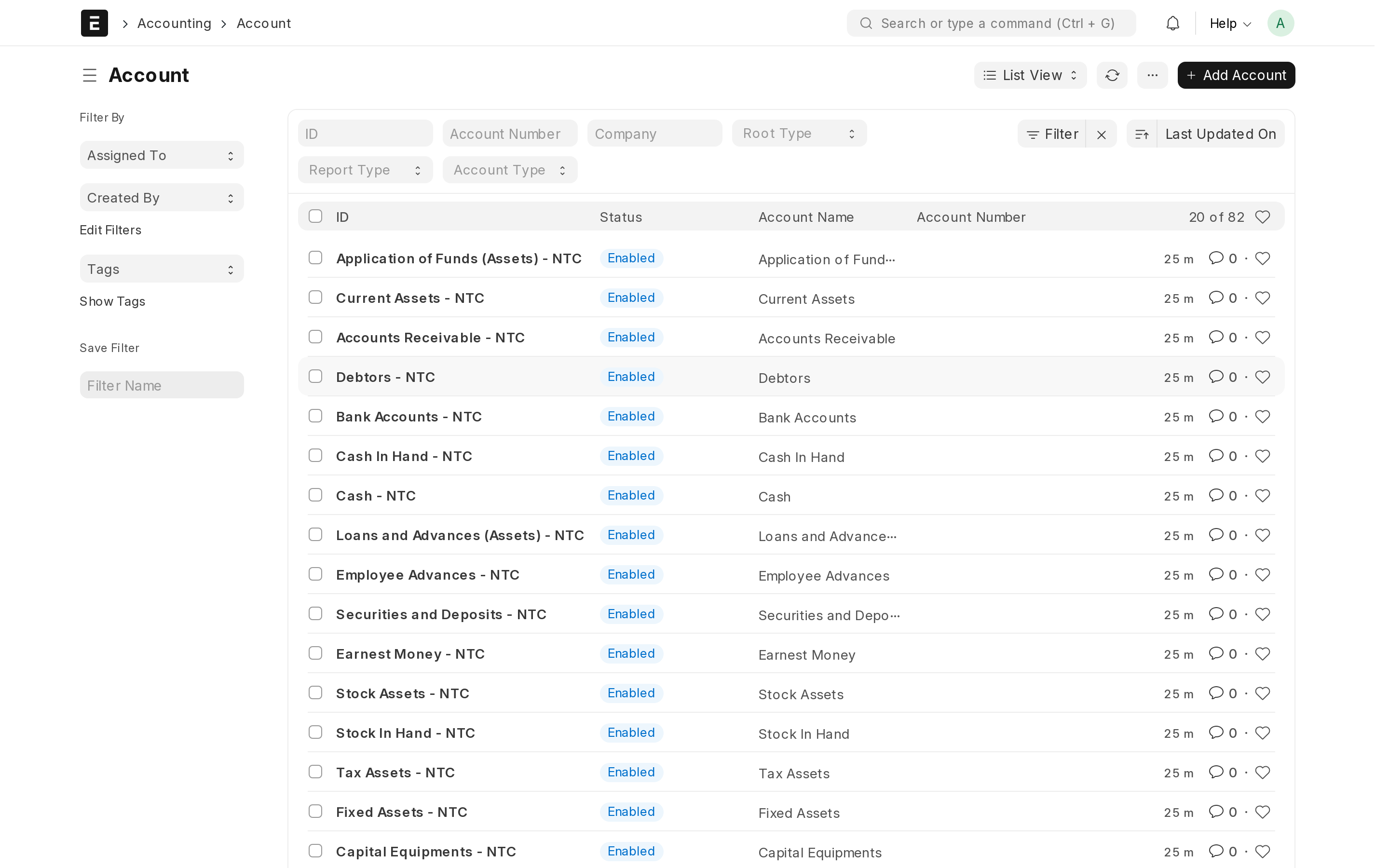
Open it by typing Chart of Accounts into the search bar at the top
(Ctrl+G). It is shown as a tree you can expand.
The five kinds of account
| Type | What it holds | Examples |
|---|---|---|
| Asset | What you own | Bank, cash, stock, equipment, money customers owe you |
| Liability | What you owe | Suppliers, loans, tax due, salaries due |
| Income | What you earn | Sales, service revenue, other income |
| Expense | What you spend running the business | Rent, salaries, electricity, the cost of the goods you sold |
| Equity | What would be left for the owners after everything owned was sold and everything owed was paid | Capital put in, profit kept in the business |
Everything in the tree sits under one of these five. If you are ever unsure where a new account belongs, decide which of the five it is first — the rest usually follows.
Folders and the accounts you can actually use
Two kinds of row appear in the tree:
- A group is a folder. It holds other accounts and shows their total, and nothing is ever recorded straight into it — for example "Direct Expenses".
- A ledger account is one of the boxes themselves, and this is where amounts actually land — for example "Electricity Expense". Ledger is the old word for a running list of entries kept in date order, which is exactly what sits behind each of these accounts.
When the system records an amount into an account, that is called posting. If an account does not appear in the list while you are filling in a document, it is almost always because it is a folder, and postings only go to ledger accounts.
Adding an account
Add an account when a cost or an income stream matters enough to you that you want to see it on its own line in a report.
- Open Chart of Accounts.
- Expand the tree and click the group the new account belongs under — for instance "Indirect Expenses" for a new running cost.
- Click Add Child. A small panel opens.
- Type the account name and leave Is Group unticked, so the account can receive postings. Set the account type if the system asks for one.
- Click Save. The new account appears under the group you chose.
Taxes
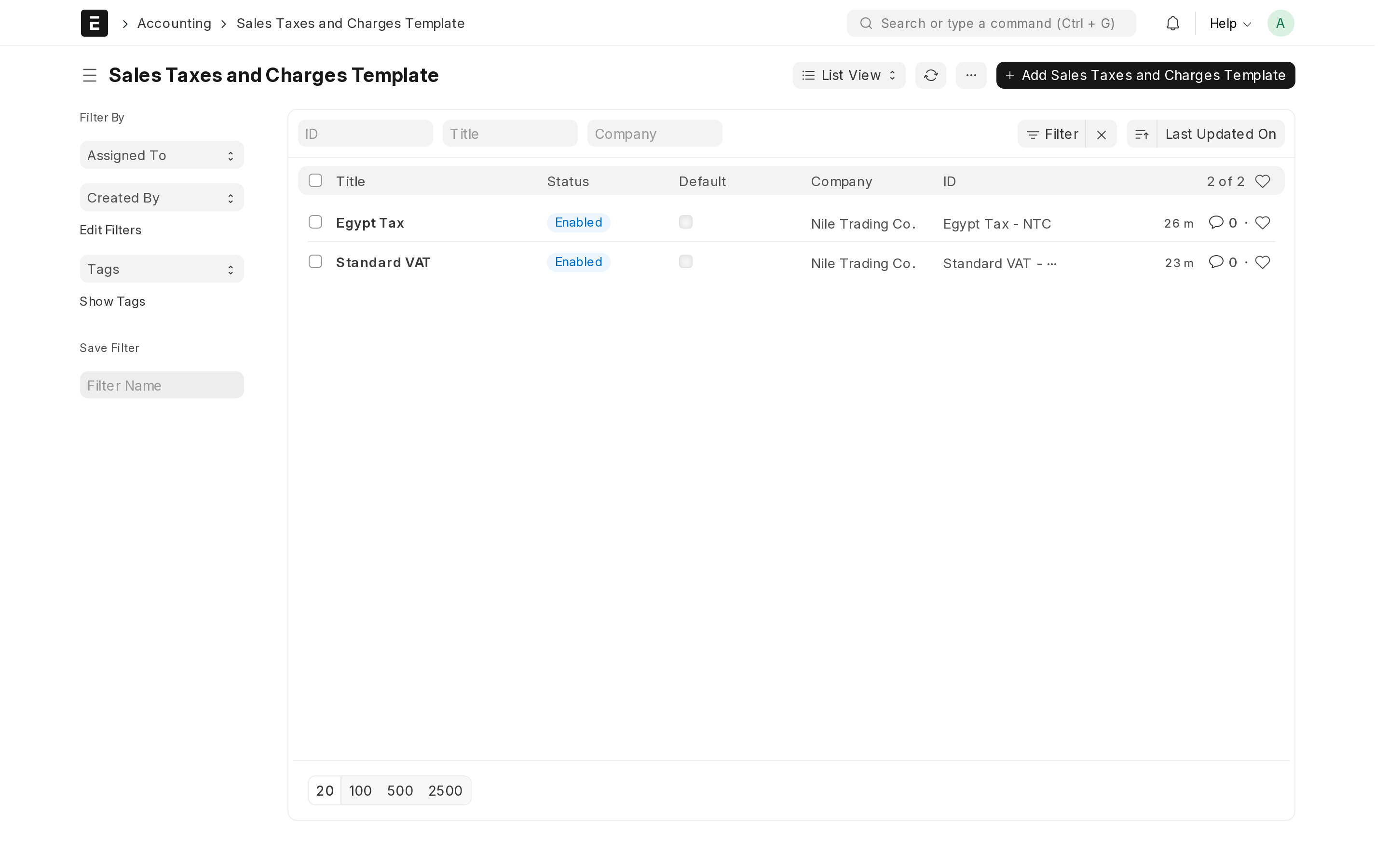
Tax rules differ from country to country, so the ERP does not assume any rate. You describe your tax once as a template — a saved set of tax rows — and from then on it is applied with one click on every document.
Creating a sales tax template
Do this before you issue your first invoice, so tax appears on it correctly rather than being added by hand.
- Search Sales Taxes and Charges Template → New.
- Give it a name people will recognise — "Standard rate", "Exempt", "Export".
- In the table, click Add Row, choose On Net Total, pick the tax account (under Duties and Taxes in your chart of accounts), and type the rate that applies where you operate.
- Tick Default if this is the template most of your sales use, so it is filled in for you on new invoices.
- Click Save.
The rate is a plain number you type, and it must be the rate your own tax authority sets — the system has no opinion about it. As an example only: a business whose rate was 15 percent would type 15 in the Rate column. Create one template per situation you actually face — your standard rate, a zero rate for exports, an exempt category — rather than editing a single template back and forth.
Purchase tax templates
Do the same with Purchase Taxes and Charges Template for tax your suppliers charge you. It is a separate template because it usually points at a different account: tax you charge customers is money you will hand over, while tax you pay suppliers can often be claimed back. Your accountant will tell you which accounts to use.
Recording payments
An invoice records who owes what. A Payment Entry records that money actually moved. Both are needed: until the payment entry exists, the invoice keeps showing as unpaid.
Money coming in
- Open a submitted sales invoice.
- Click Create → Payment Entry. The customer and the amount are filled in for you.
- Choose the bank or cash account the money arrived in, confirm the amount, and Submit.
Money going out
- Open a submitted purchase invoice.
- Click Create → Payment Entry.
- Choose the account the money left from, confirm the amount, and Submit.
Either way, the invoice is marked Paid and the customer's or supplier's unpaid balance changes. Part payments are normal: enter the smaller amount, and the rest stays unpaid.
You can also record a payment that has no invoice yet — a customer paying in advance, or a deposit you put down with a supplier. Search Payment Entry → New, choose whether you are receiving or paying, and name the customer or supplier. It can be matched against an invoice later.
Bank and cash accounts
Every place money physically sits needs its own account: each bank account, the petty cash box, the till at each branch, and any payment wallet you use. Your ERP starts with one general bank account and one cash account. Add the real ones the same way you add any account, under the Bank Accounts or Cash In Hand group.
Keeping them apart is what lets you check the ERP against a real bank statement at the end of the month — going down both lists line by line until they agree. Accountants call that reconciling, and it is the main way errors get caught early. A single lumped-together "money" account cannot be checked against anything.
The reports you will actually use
Every report answers one question. Start from the question you have, not from the report name. Find each one by typing its name into the search bar.
| The question you are asking | The report to open |
|---|---|
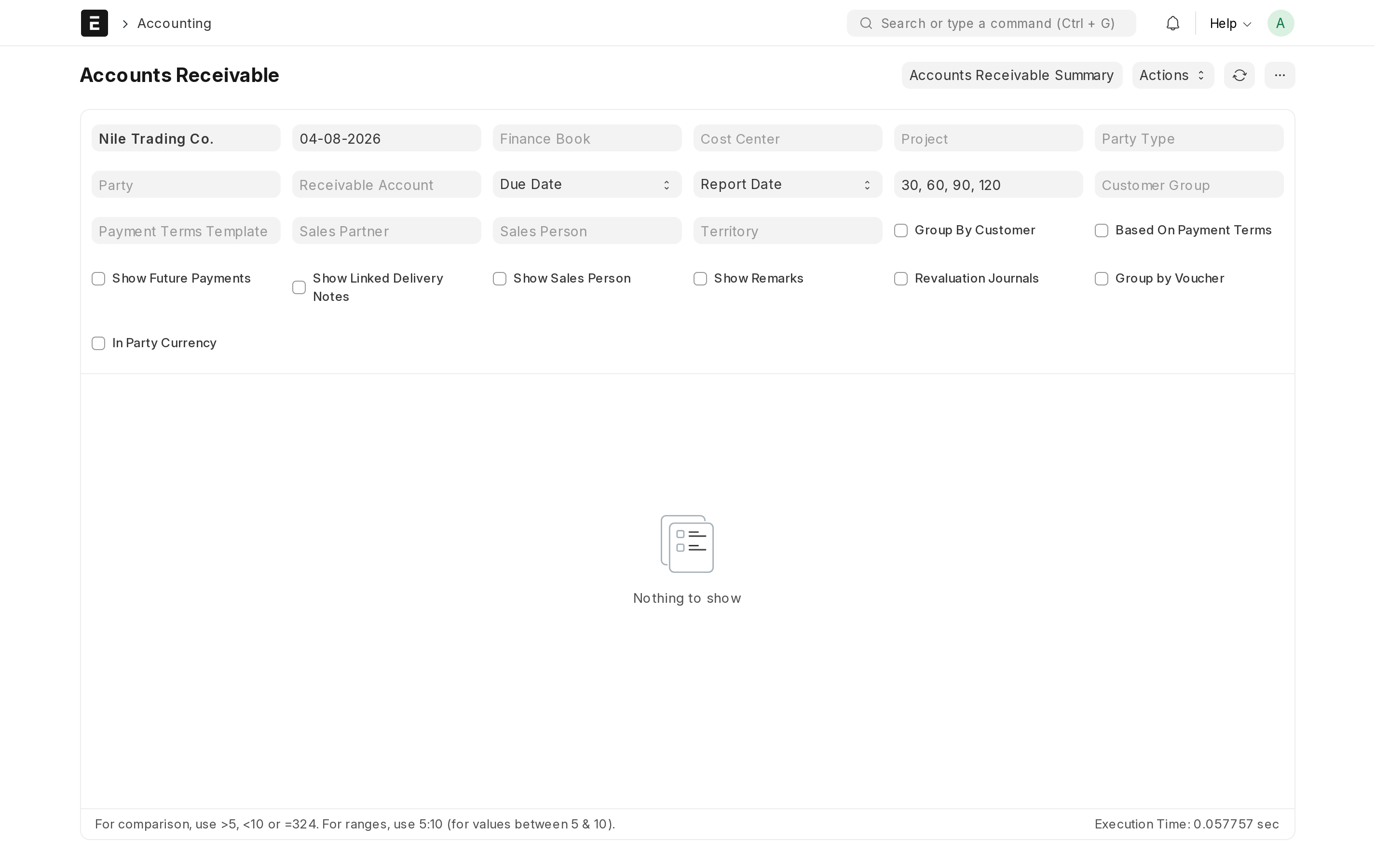
| Who owes me money, how much, and since when? | Accounts Receivable — receivable is the accounting word for money owed to you. Open it before chasing customers for payment. |
| Who do I owe, and when does it fall due? | Accounts Payable — payable is money you owe. Open it before deciding what to pay this week. |
| Did we make money last month? | Profit and Loss — everything you earned over a period, minus everything you spent in it. |
| What is the business worth on paper today? | Balance Sheet — what you own and what you owe at a single date. This is the one a bank, an investor or your accountant will ask for. |
| Where exactly did this figure come from? | General Ledger — every individual entry, filtered by account, customer or supplier, and date. |
| Does anything look out of place across all my accounts? | Trial Balance — every account in one list with its balance. It is mainly your accountant's overview, and a quick way to spot an account holding an amount that cannot be right. |
Closing a year
At the end of a financial year, a Period Closing Voucher moves the year's profit or loss into equity, so the new year starts clean. This is a once-a-year step that your accountant should lead — do not run it out of curiosity mid-year. Many small companies leave it to their accountant entirely.
Common questions
Do I have to understand debits and credits?
No. Enter the documents — invoices, bills, payments — and the entries behind them are made for you. Knowing the five kinds of account is enough to read your own reports and to hold a sensible conversation with your accountant.
A figure looks wrong in a report
Open the General Ledger, filter it to that account and that period, and read the entries. Each line links back to the document that created it, so the cause is usually two clicks away.
Can my accountant have access?
Yes, and it is the easiest way to work. Invite them from the Users page of your control panel at app.nezmaro.com and give them the Accounts User role. They then work directly in your ERP instead of asking you for exports. The team and roles chapter covers this in full.
Something still does not look right
Email support@nezmaro.com with your ERP address and the report you are looking at, and we will help you trace it.